Mitsar-BFB setup via SmartAIR adapter (Bluetooth 5.0)
Posted
Updated
ByAlex Mitsar
WIKI:
Mitsar-BFB setup via SmartAIR adapter (Bluetooth 5.0)
This tutorial will help with initial setup of you new 2 channel Mitsar-BFB Neurofeedback trainer with Bluetooth 5.0 interface via SmartBCI wireless adapter.
Amplifier is connected to the computer via wireless interface using SmartAIR wireless adapter. The computer must be operated by OS MS Windows 10/11 64-bit. It works with EEGStudio Neurofeedback software and require initial setup on your PC or laptop.
Any other third-party Bluetooth adapters are NOT compatible with the system.
Do not place the SmartAIR adapter on the CPU or any other metal surface. Use USB extension cable to move SmartAIR away from the CPU or laptop or another powered device to avoid poor connection with the amplifier.
Quick-start pairing procedure
SmartAIR wireless adapter
Connect SmartAIR to the computer using provided USB Type-C cable
Turn on the Mitsar-BFB amplifier by pressing and holding its power button
Be aware that Mitsar-BFB device will turn off automatically after 5 minutes for battery life saving if you are not using it. You might have to turn it ON again to continue.
Run EEGStudio software
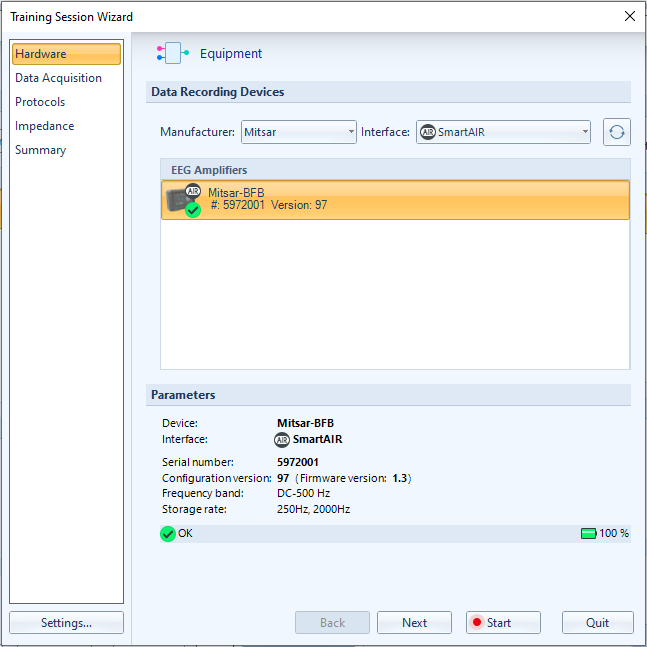
Go to the Hardware tab either in Application optionsor Training Session Wizard
In the Data Recording Devices sesstion select Mitsar for manufacture and SmartAIR for the interface in drop down menus
Software will detect any of Mitsar/SmaertBCI amplifiers in SmartAIR adapter range
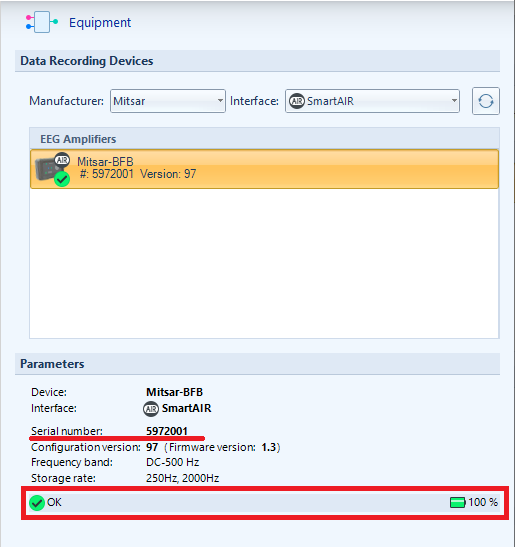
Find amplifier with a proper SN in the list and select it
Tick the check box to select it (if applicable)
Check device state and battery charge before starting the training session.